
The ClubReady Class Kiosk is a mobile and tablet interface that allows members to sign up for classes and check themselves in within the ClubReady system. The app is available on iOS and Android mobile devices in addition to tablets.
Content:
- Before You Begin
- How the Class Kiosk Works
- Using the Class Kiosk
- Check Members Into Classes
- App Settings
- Frequently Asked Questions
- Related Articles
Before You Begin
Download the App:
- Android (Mobile & Tablet): Google Play Store
- iOS (iPhone & iPad): Apple App Store
Requirements:
- A Master Admin login OR a staff account with a username and password in ClubReady is required to open and use the Class Kiosk app
Important Note: The password reset option is no longer available in the new version. If you need to reset your password, you must log into your ClubReady account via the website to complete the reset. A pop-up message will display in the app directing you to do so.
How the Class Kiosk Works
Booking Policy Enforcement
The app enforces booking policy lead times attached to class types in ClubReady. If a member attempts to book a class that violates the lead time, a pop-up message displays the restriction.
Booking and Check-In Process
When a member books into a class from the kiosk, they are NOT automatically checked in. The member must complete two separate actions:
- Book into the class (adds them to the class roster).
- Check in to the class (marks attendance).
Past Class Display
Classes that have begun remain visible on the app for 30 minutes after the start time.
Booking Log-Off Settings
The app checks the booking log-off settings configured in your location's Scheduling Settings.
Using the Class Kiosk
View & Book Upcoming Classes
After logging in, you will see a list of all upcoming classes based on your selected lead time window (configured in Settings).
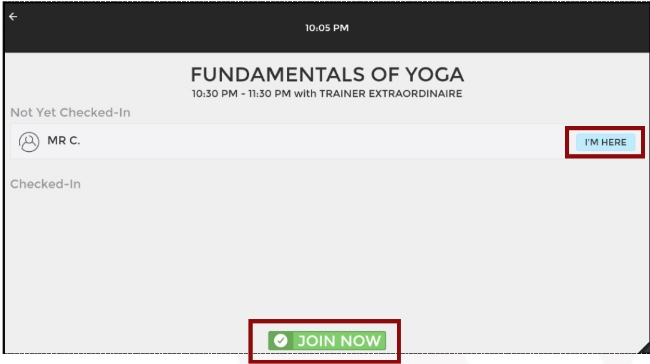
To book a member into a class:
- Select the desired class from the list.
- View current bookings and available spots.
- Select JOIN NOW to book a member who is not currently registered.
- When prompted, enter the member's phone number.
- After the member is booked, select AWESOME! to return to the class list.
Note: If a customer does not have a phone number (cell or home) in ClubReady, you will need to add their contact information before they can book. Learn how to edit a customer profile →
Check Members Into Classes
To check in a member who is already booked:
- Select the class from the list.
- Select I'M HERE next to the member's name.
- If phone verification is enabled, the member will be prompted to enter their phone number for confirmation.
- A check-in confirmation will appear, select OK.
Account Status Alerts:
If a member attempts to check in but their account has issues (inactive, past due, or frozen based on club settings), an "UH OH" message will appear. Check-in will be prevented until the issue is resolved.
App Settings
Select Settings to configure the kiosk:
Lead Time:
Choose how far in advance to display upcoming classes:
- 2 Hours
- 8 Hours
- 12 Hours
- 24 Hours
Names:
Choose how member names appear:
- First Name + Last Initial (e.g., "Sarah M.")
- Full Name (e.g., "Sarah Martinez")
Phone Verification:
When enabled, this option prompts currently registered members to enter their phone number to complete check-in.
Show Past Classes:
When enabled, classes that have already started will remain visible on the kiosk for up to 30 minutes after the start time.
Frequently Asked Questions
Q: Can a member still check in if a class has already started?
A: Yes. With the "Show Past Classes" setting enabled, members can check into a class up to 30 minutes after the class start time. After 30 minutes, the class will no longer appear on the list.
Q: What happens when a member checks in using the Class Kiosk?
A: Checking in marks the member as "Show" and logs them as having completed attendance for the class. Note that booking and check-in are separate actions, booking into a class does not automatically check the member in.
Q: Can members download this app and use it on their personal devices?
A: The Class Kiosk app is designed for use by studio staff at the front desk or designated check-in area. The app requires staff login credentials and is intended for in-person, studio-managed check-ins.
Q: How do I reset my password?
A: The password reset option is not available in the kiosk app. To reset your password, log into your ClubReady account via the website. The app will display a pop-up message directing you to do so.
Q: What happens if a member tries to book a class that violates the booking lead time?
A: A pop-up message will display informing the member that they cannot book the class due to the lead time restriction configured for that class type in ClubReady.
Q: What if a member doesn't have available credits or their account is past due?
A: The kiosk will only check for past due, frozen, or available credit statuses when a member attempts to book a class. These statuses are not checked at the time of check-in.